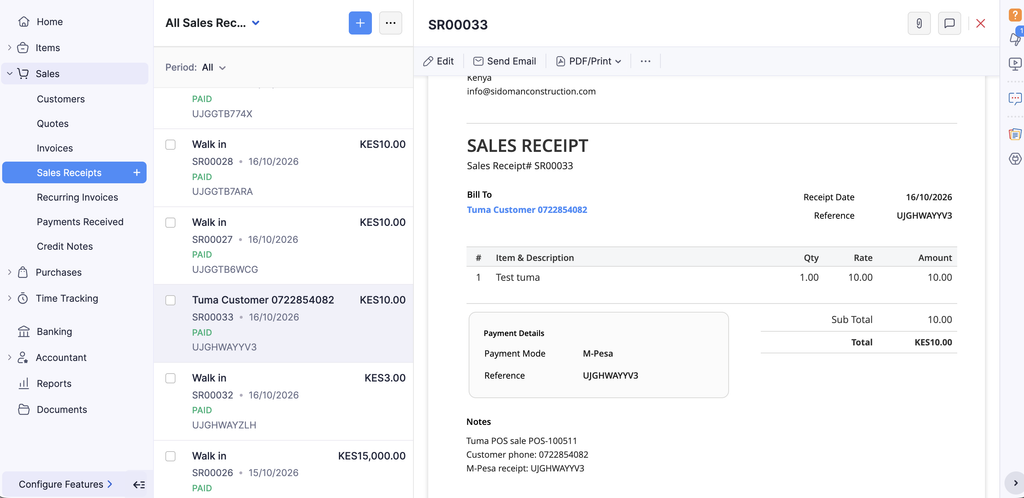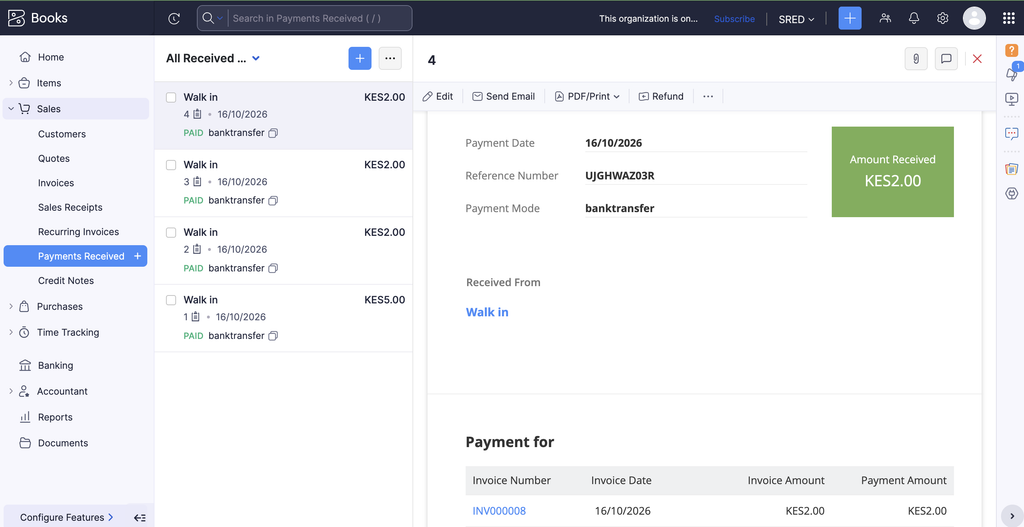
Zoho Books Integration with local banks, MPESA, Airtel Money, Saccos made easier
For MSMEs, reconciling payments from mobile money and bank transfers against every order/sale in Zoho is the hardest part for every merchant’s day-day operation. Tuma Payments Zoho Connector plugin solves this by automating payments reconciliation in two clicks by simply granting Tuma access to your Zoho Books acocunt.
Prerequisites
To connect your MPESA Till number, Paybill or local bank account with Zoho Books for automated payments reconciliation, you need to have the following in advance:
1) Active Bank/Sacco account in Kenya or MPESA Buy Goods till number or MPESA/Airtel Money Paybill number
2) Verified Tuma account or create one here: https://merchant.tuma.co.ke/register
3) Zoho Books subscription or sign up here
Steps
1) Create a business profile in your Tuma merchant acccount under Businesses > new. Enter business details and more importantly, bank details
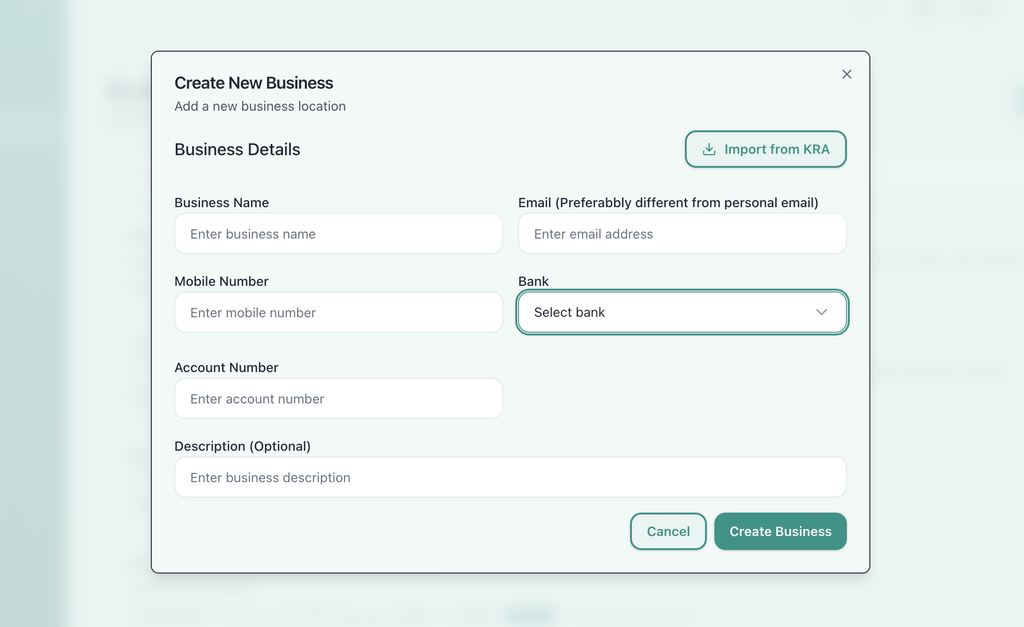
Note: For MPESA Buy Goods, select “inhouse MPESA Business(buygoods)” and for Paybill, select “inhouse MPESA Business(PAYBILL)” Kindly note that this applies to yill/paybill numbers registered by Safaricom under your business name, not bank issued paybills like 247247 for Equity, 522533 for KCB etc. If you have such, select the actual bank name and leave paybill option.
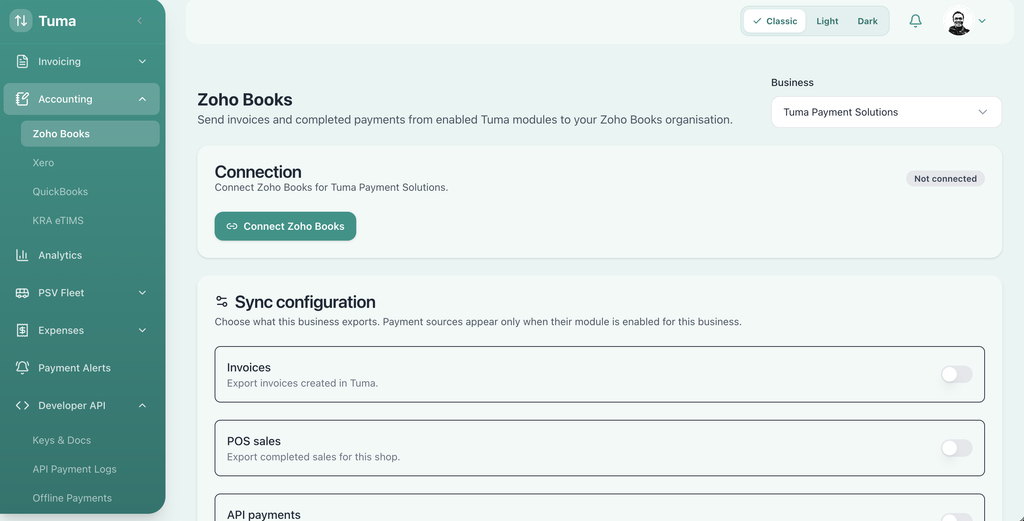
2) Navigate to Accounting > Zoho Books > Business account then click “Connect Zoho Books.”
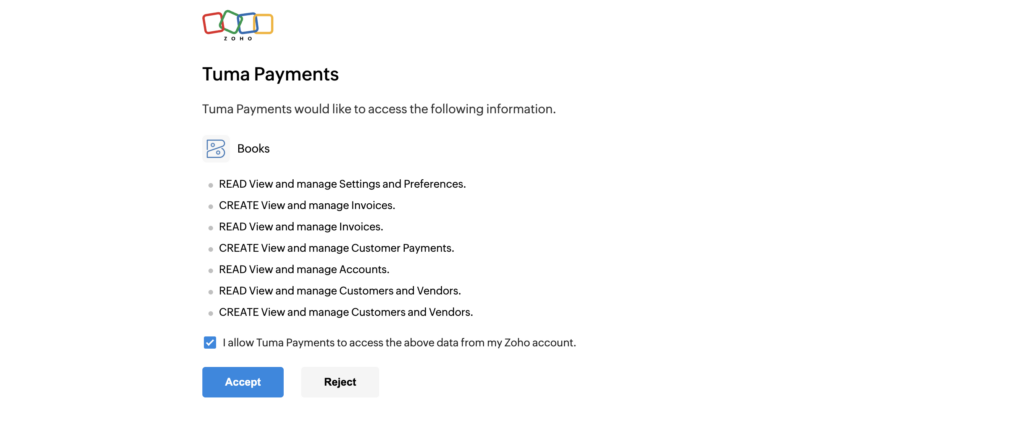
This redirects to Zoho Books asking to grant Tuma Payments access to the following privileges:
- READ View and manage Settings and Preferences.
- CREATE View and manage Invoices.
- READ View and manage Invoices.
- CREATE View and manage Customer Payments.
- READ View and manage Accounts.
- READ View and manage Customers and Vendors.
- CREATE View and manage Customers and Vendors.
With this, Tuma is able to automatically create and update invoices, sales etc in Zoho Books when payments are made/received via MPESA, local banks and any other digital payment channel in real-time.
3) Click “I allow Tuma Payments to access the above data from my Zoho account.” then Accept
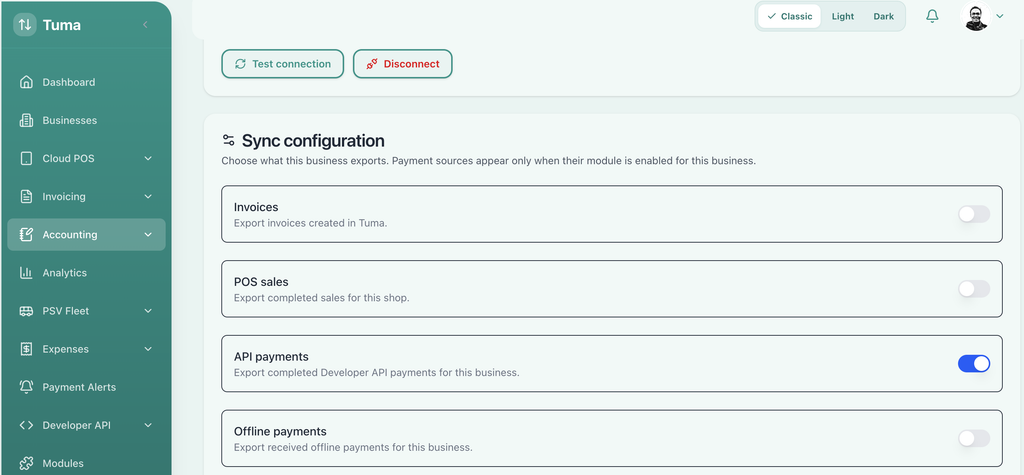
This redirects back to Tuma merchant portal where you can now select which transactions Tuma should post in Zoho Bookings including POS Sales, Invoices, offline payments, API payments, bank transfers, STK push etc. These available options depend on the modules that a business account has access to on Tuma Platform. If a user doesn’t use inbuilt Tuma tools, simply select API payments.
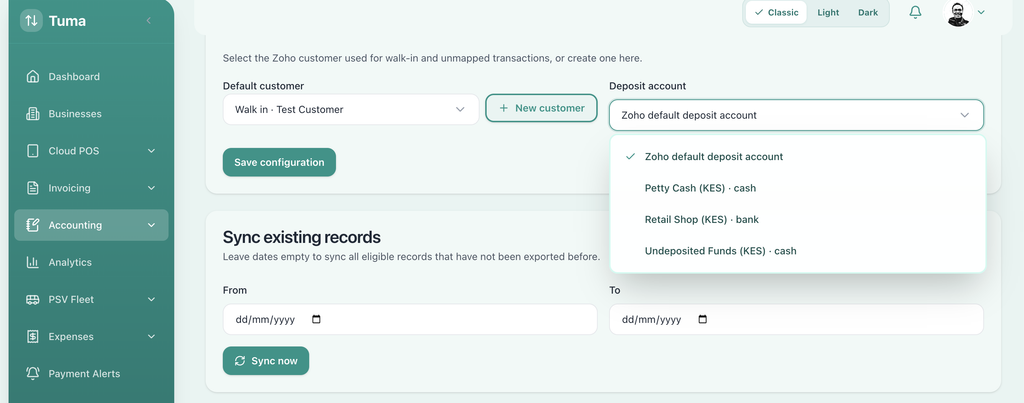
4) Select default customer name for walks as well as preferred Zoho Bank account and click save configurations
5) For every payment made through the sources enabled above, the sale/payment details will instantly be posted on Zoho Books.