
Online POS solution integrated with M-PESA, Banks and eTIMS
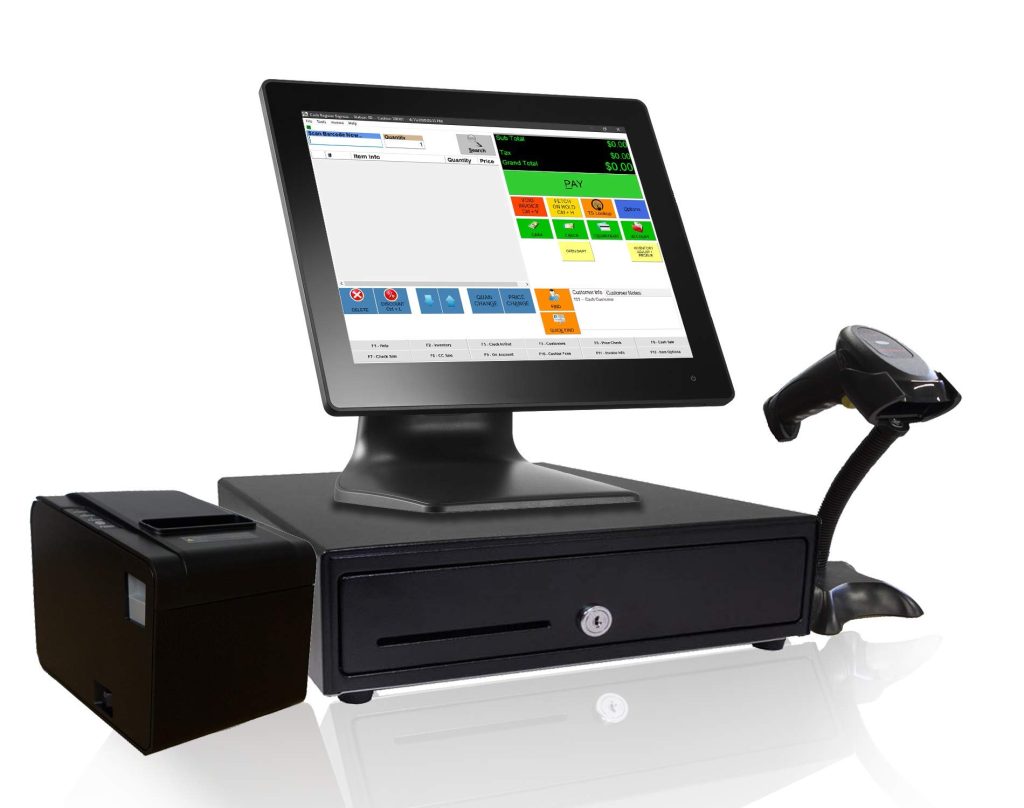
Tuma Payment gateway has rolled out a robust, cloud based POS system to enable medium scale retailers manage inventory and sales with automated payment reconciliations. With M-PESA being the defacto payment method in Kenya, Tuma POS taps into mobile and core banking ecosystem to enable merchants collect payments with real-time payment confirmation option that links every sale with its corresponding payment transaction.
Key Features
1) Cloud-based: can be accessed from multiple devices, different locations at the same time.
2) Branch archtecture: can support businesses with multiple branches
3) Payment Integrations: Fully integrated with M-PESA Business(Paybill or Buy goods till number) as well as banks like Equity Bank, KCB, Coop, NCBA, Loop, DTB among others to automate collections and payment reconciliations in real-time.
4) Multi-channel alerts: extends payment confirmation alerts via Email, Whatsapp, Telegram, slack among other communication channels.
5) Multi-currency: Supports KES, GPB, USD and Euro.
Integrations & API
Moreover, Tuma POS is integrated with popular shopping/commerce, compliance and accounting tools like Woocommerce/Wordpress, Zoho, Odoo, KRA etc.
NB: Kenya Revenue Authority Integration is a premium feature provided on request by interested merchants. The feature enables them to automatically generate ETR compliant receipts.
In the event that a merchant needs to extend our features, Tuma POS has a REST API. These integrations work in hand to facilitate a seamless sales and payment data synchronization across multiple sales channels in real-time.
Onboarding and user guide
1) Sign up here: https://merchant.tuma.co.ke
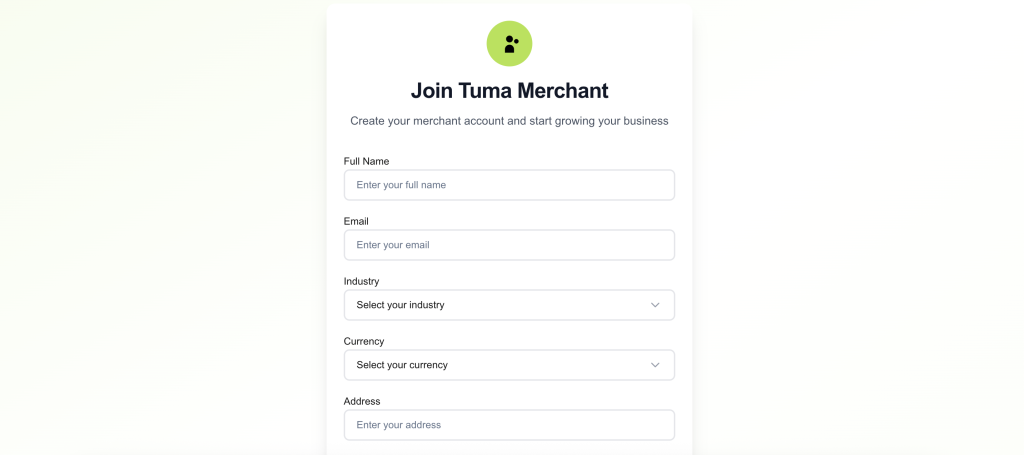
2) Fill all fields. NB: Enter full name as it appears in your National ID
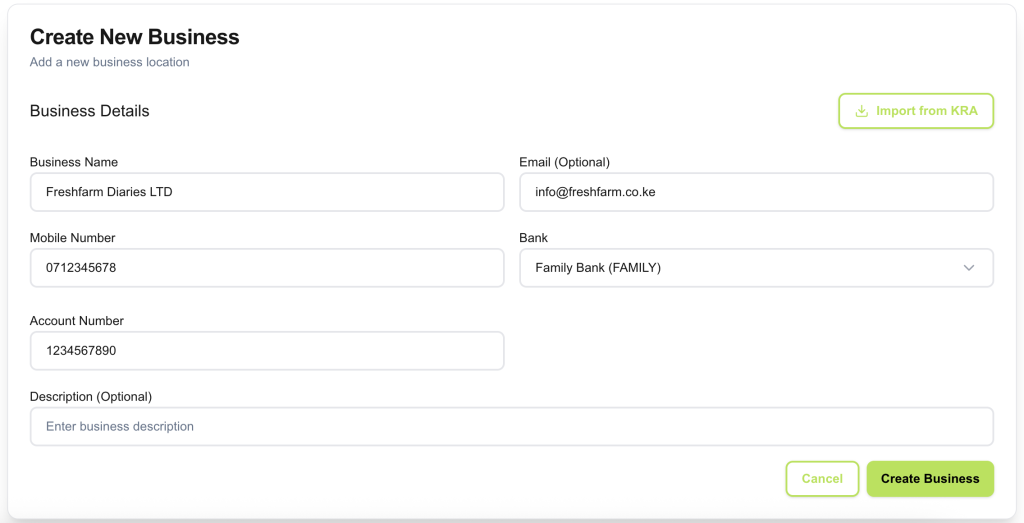
3) Create your business name and configure bank details. Select your bank name and enter your account number, then click ‘create business‘.
NOTE: For API access, you must provide an email address for the business profile. It can still be your personal email address but it’s required for API access. The email field is only optional for portal use cases. Also in case of Lipa na MPESA paybill/buy goods, select Inhouse BuyGoods/Paybill number as the bank option then enter paybill/till number as the account number.
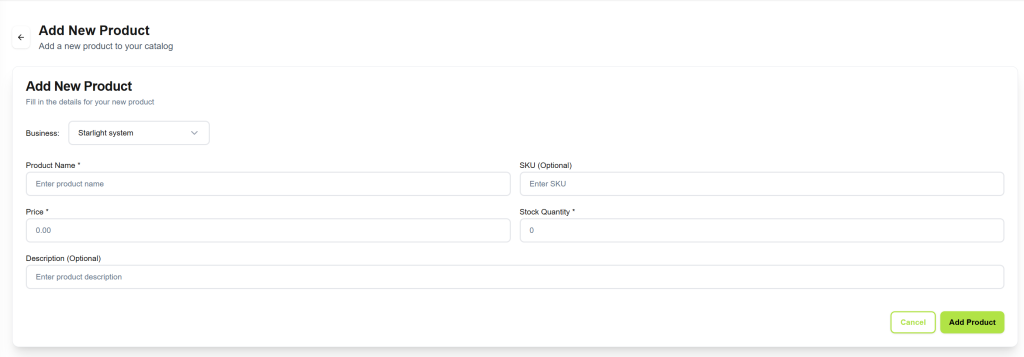
4) Go to Products> Add Product. Fill name, unit price, etc. NB: put anything for SKU input box.
5) Go to Notifications section and follow instructions to configure your favorite communication channel(s).
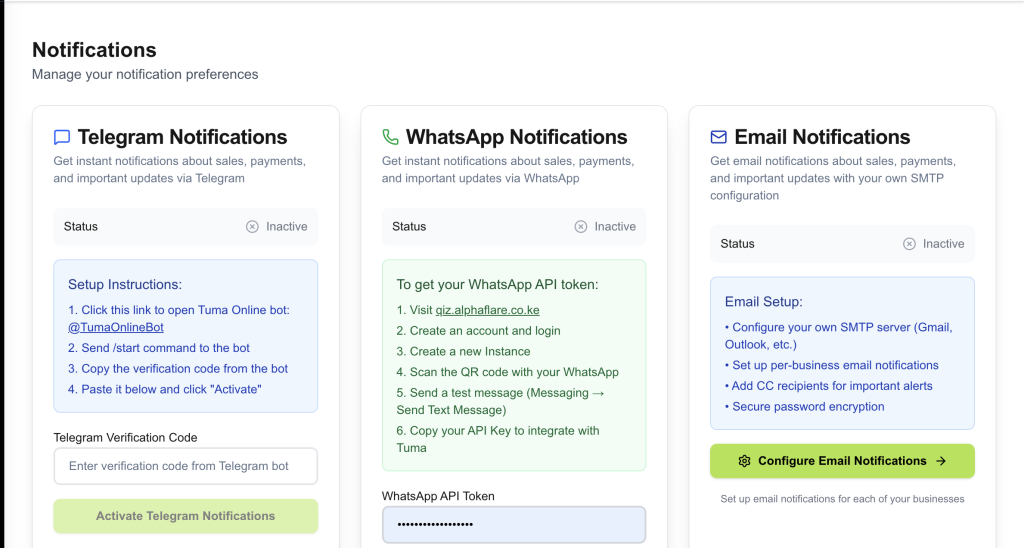
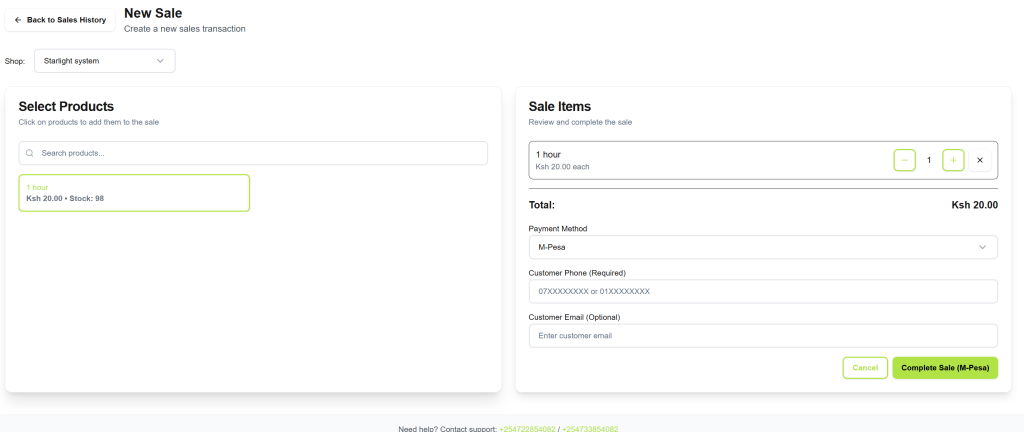
6) Go to Sales > New sale and try to make a sale to verify if payment alerts are working perfectly.
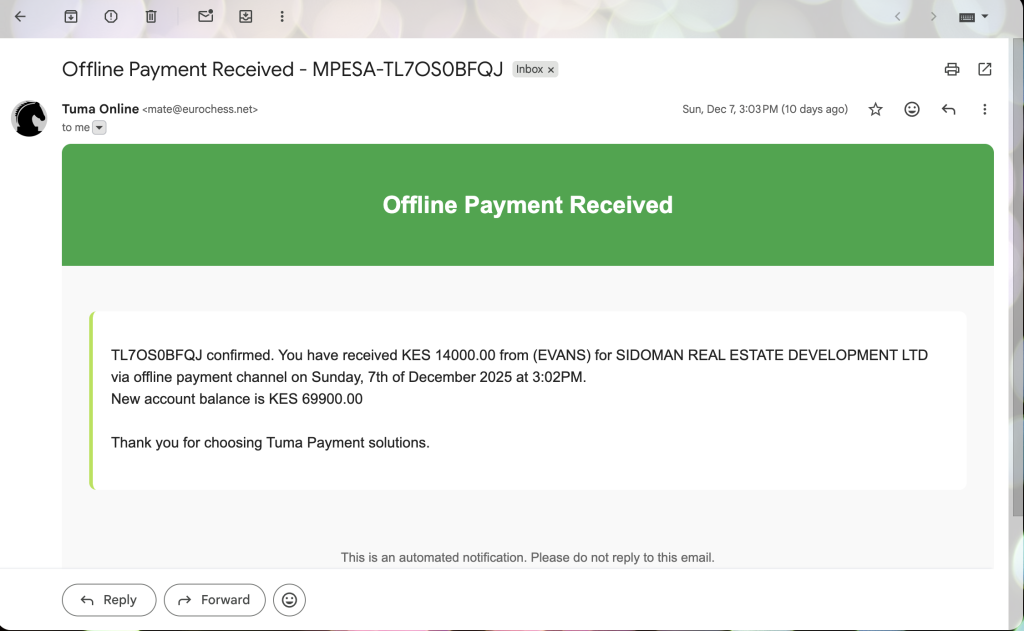
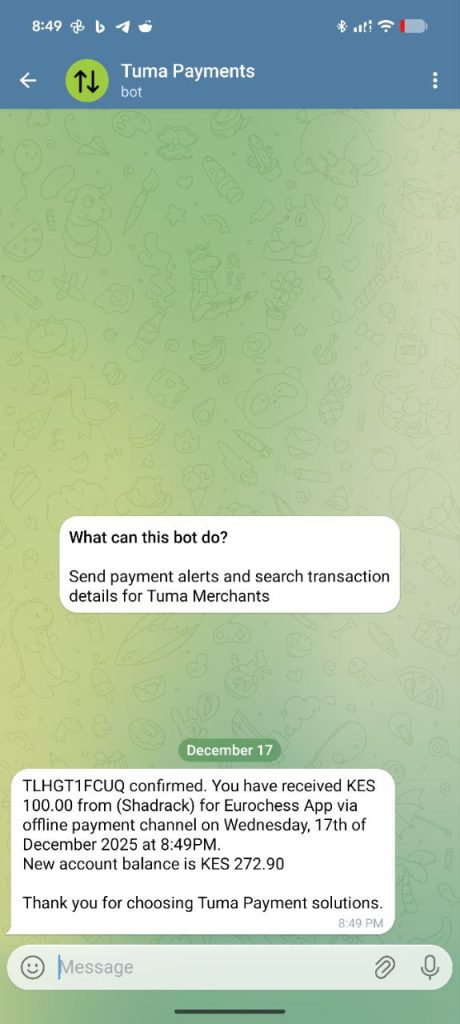
Offline Payments
This works with online checkout payments like STK Push etc. Offline payments are configured seperately e.g deposits made over the counter in Banks or STK menu/USSD or direct MPESA APP. Please contact support via mobile, email or any of our social media accounts.
