
Guide: Integrating Microsoft Dynamics 365 Business Central with MPESA and Bank payments
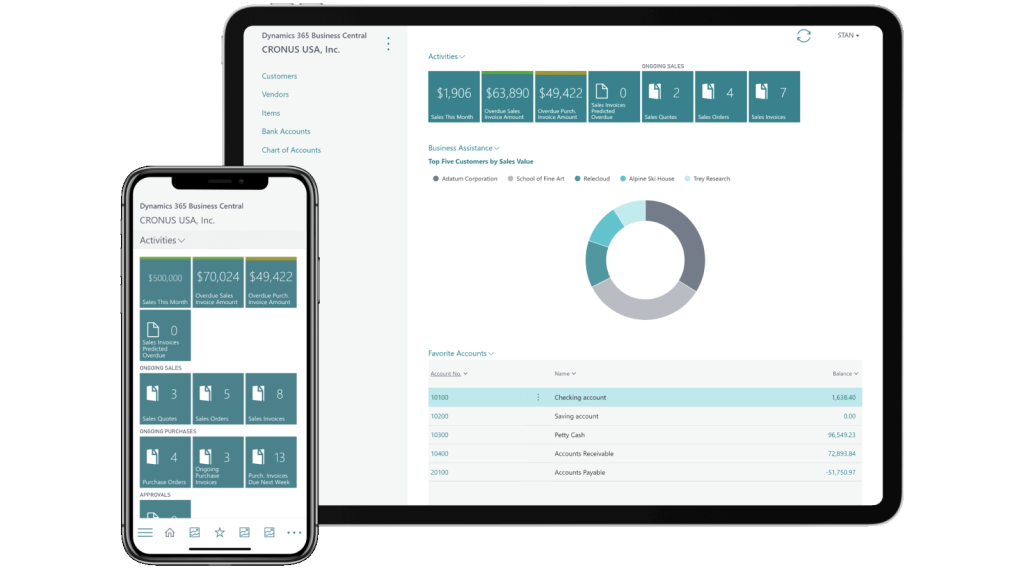
Microsoft Business Central is a comprehensive cloud-based ERP tailored to unify business data, streamline workflows, and enhance customer engagement. It is a modern, cloud-based evolution and successor to Dynamics NAV(on-premise version) acting as the same core ERP system rebranded and updated by Microsoft.
Due to its wide adoption by SMEs, Tuma Payment Gateway provides an extension that integrates MPESA, Airtel Money and bank payments with Business Central to automate billing workflows and payment reconciliations.
This works with M-PESA paybills, Buy Goods till numbers or any bank account in Kenya, that is:
- M-PESA Paybill number / Buy Goods Till Number
- Equity Bank
- Kenya Coomercial Bank(KCB)
- Cooperative Bank of Kenya
- Diamond Trust Bank
- NCBA
- Loop
- Family Bank
- Stanbic Bank
- I&M bank
- KWFT
- Faulu Bank
- Access Bank
- Standard Chartered Bank
- ABSA
- SBM Bank Kenya
- National Bank
- Sidian Bank etc
Prerequisites
To integrate mobile money and bank payments with Dynamics 365 Business Cenntral, you’ll need to have an active license for Dynamics 365 as well as Tuma Payment Gateway API keys. Sign up on Tuma, create a business profile and generate API keys: refer to this link . The onboarding procedure is the same regardless of your bank.
To proceed, You’ll need:
– A user with permission to install extensions and manage users/permissions
– The app extenstion file: `Tuma_Payments_1.0.0.27.app` . Click to Download the zip file and extract.
– Tuma API credentials (`API Email`, `API Key`)
– Your BC environment name (example: `Production` or `Sandbox`)
– Tenant ID and Company ID for webhook URL
Installing Tuma extension (.app) for Business Central
1. Open Business Central web client.
2. Use Tell Me (top search, `Alt+Q` on windows) and type: `Extension Management`.
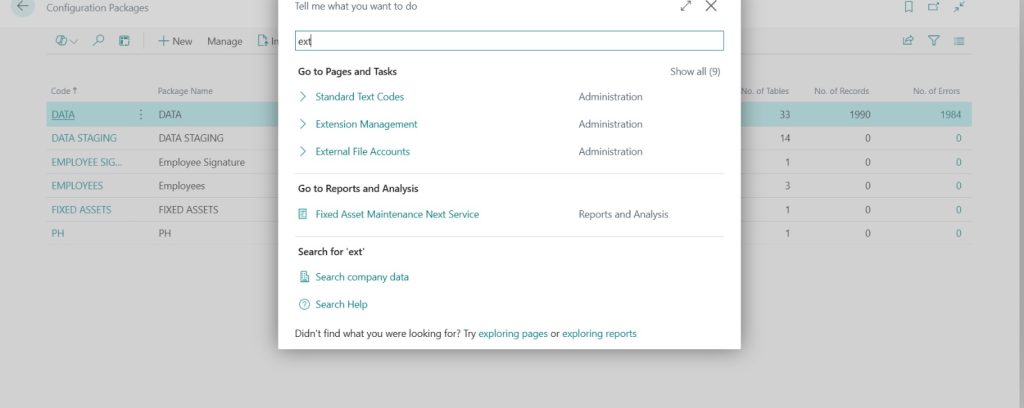
3. Open Extension Management page.
4. Click `Manage` -> `Upload Extension`.
5. Select the extracted .app extension file.
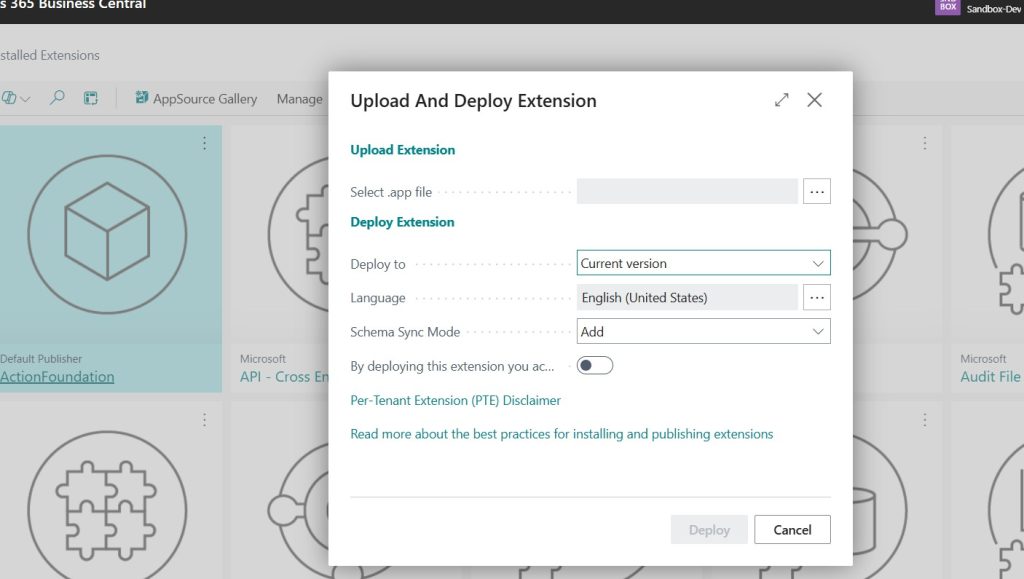
6. Confirm deployment.
Confirm installation
1. Use Tell Me and search `Tuma Setup`.
2. If the page opens, installation is successful.
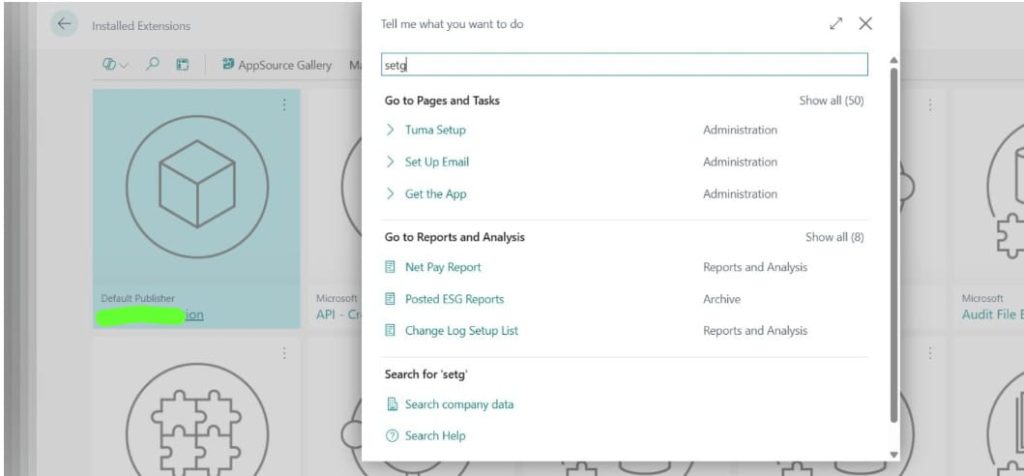
3. Open any Sales Invoice and check action `Pay via Tuma M-Pesa`.
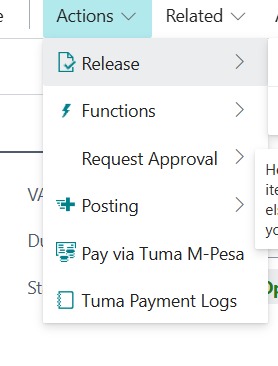
Assign permission sets to users
Navigate:
1. Use Tell Me and open `Users`.
2. Select a user.
3. Click `Related` -> `User` -> `Permission Sets` (or open `User Permission Sets`).
4. Add required permission set lines.
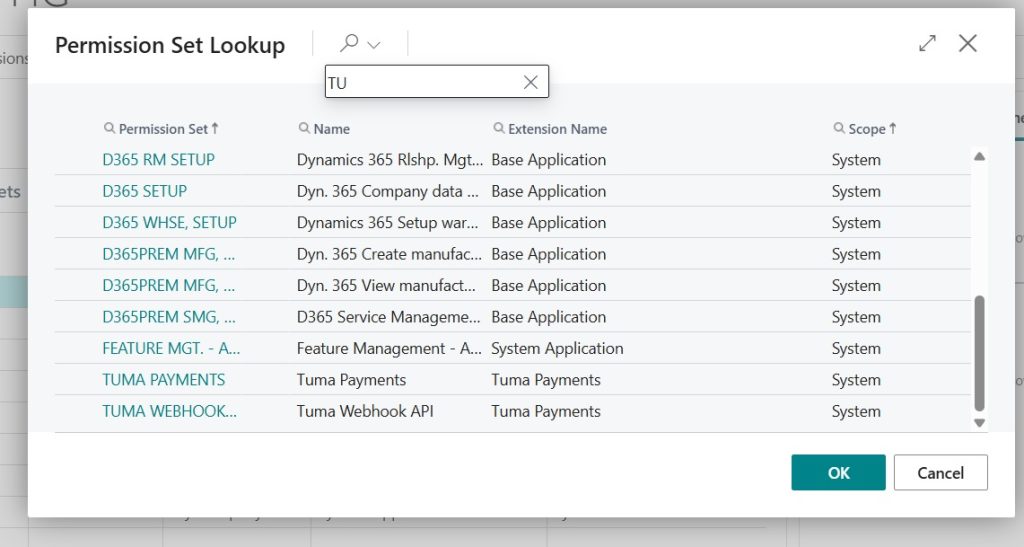
What to assign:
– Normal finance/operations users: `TUMA PAYMENTS`
– API/webhook service user: `TUMA WEBHOOK API`
Configure Tuma Setup on Business Central
1. Use Tell Me and open `Tuma Setup`.
2. Fill these fields: `API Email`, `API Key`, `API Base URL`, `Webhook URL`, `Auto Post Receipts`, `Receipt Journal Template`, `Receipt Journal Batch`.
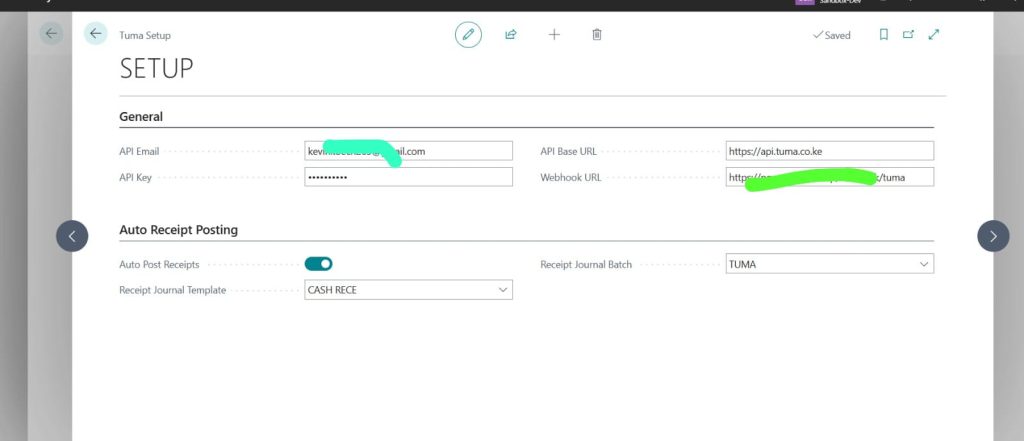
3. Use https://api.tuma.co.ke as `API Base URL`
Note: If `Auto Post Receipts` is on, both journal fields are required.
(If using auto-post) prepare receipt journal target as follows:
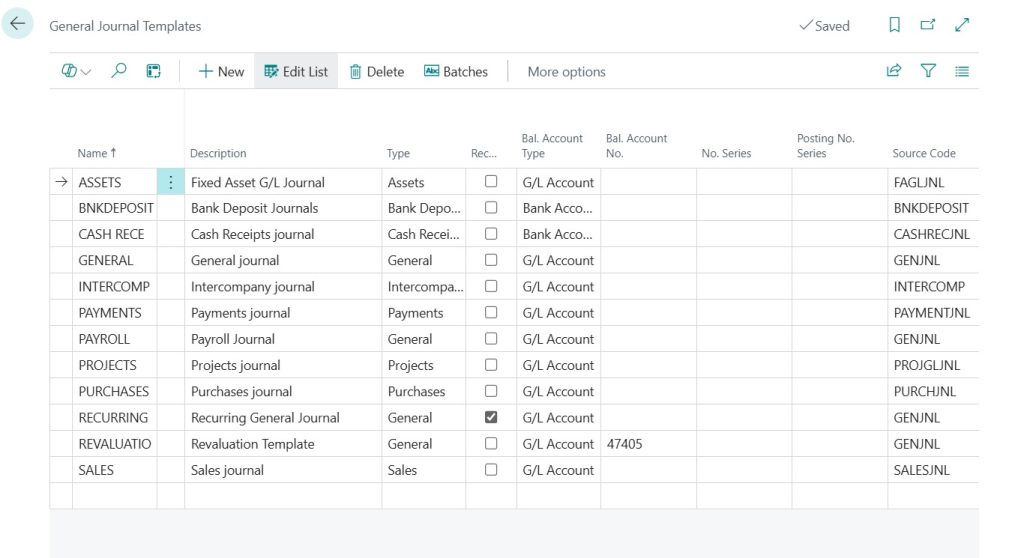
1. Use Tell Me and open `General Journal Templates`.
2. Ensure a template exists for receipts.
3. Use Tell Me and open `General Journal Batches`.
4. Ensure a batch exists under your chosen template.
5. Return to `Tuma Setup`.
6. Set `Receipt Journal Template` and `Receipt Journal Batch`.
Build and set the webhook URL
URL Format
https://api.businesscentral.dynamics.com/v2.0/{tenantId}/{environment}/api/tuma/payments/v1.0/companies({companyId})/callbacks
Where values come from:
– `{tenantId}`: Microsoft Entra tenant ID
– `{environment}`: your BC environment name
– `{companyId}`: GUID of the BC company receiving callbacks
Where to put it:
1. Open `Tuma Setup`.
2. Paste URL in `Webhook URL`.
3. Save.
Test STK push from invoice
1. Use Tell Me and open `Sales Invoices`.
2. Open an invoice (with customer and amount).
3. Click `Pay via Tuma M-Pesa`.
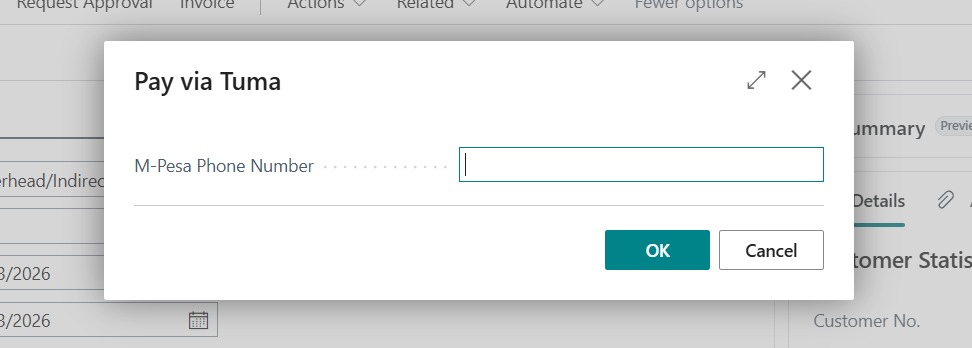
4. Enter customer phone in prompt and confirm.
Check Payment logs
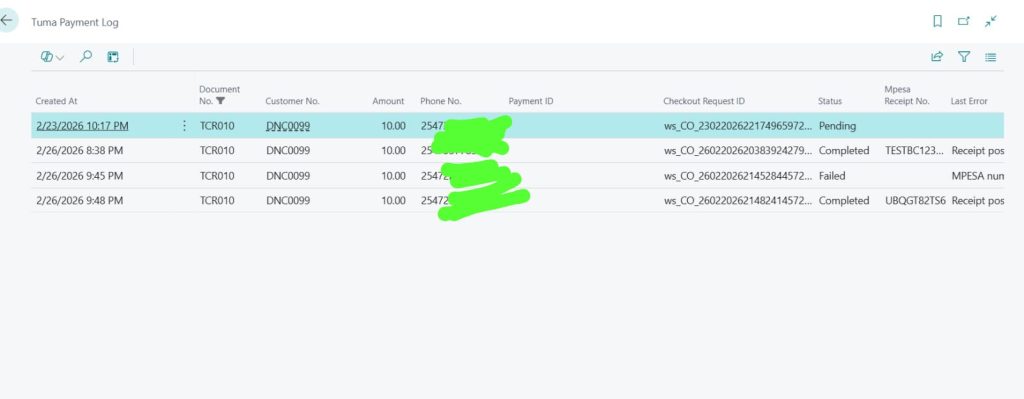
1. Use **Tell Me** and open `Tuma Payment Log`.
2. Find the invoice row.
3. Confirm status where payment details are automatically captured.
Support
For inquiries or support, contact [email protected] or +254 782 411 538.
